
This is an old revision of the document!
Starting with containers
To work with containers, we need docker CLI (command line interface). With N99panel, it comes as default as the same is used to setup other applicatons/features.
With containers you can essentially run any application which can be containerized. Internet has tons of tutorials about docker, images, containers and containerization
What N99panel lets you do is
- Provide the docker environment and tools
- Link your container end points with VHosts and URLs
N99panel by giving you the ability to link your container with a VHost and URL end point does the heavy lifting job of setting up nginx, provisioning SSL certificate etc.
In CLI, you can run your containers via two methods
- docker run command
- docker compose command
For a mature setup, using docker compose setup is advised.
In order for N99panel to link a VHost/URL with your container, your container has to expose the container's network interface, to the host interface/IP 127.0.0.1 in the port range of 26000 to 26999 . So if your app is running on port 8080, the relevant docker compose line will look something like
ports:
    - 127.0.0.1:26000:8080
Then we come to linking your container to the VHost/URL
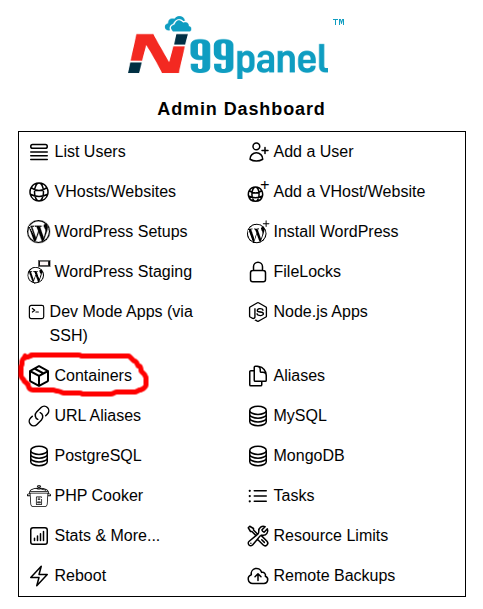
Step 1 : Log into N99panel. From under N99panel dashboard, click 'Containers'
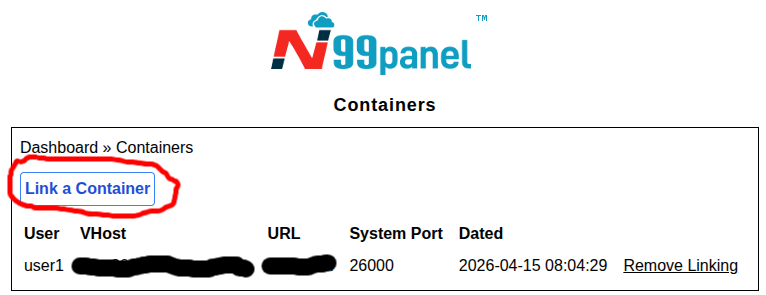
Step 2 : Now click 'Link a Container'
Step 3 : Fill in the form as under
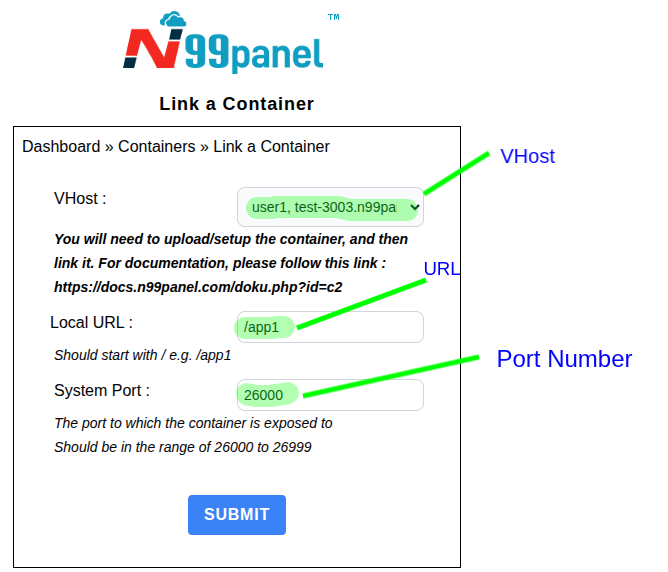
Important points :
- The system port should be the same as provided by you either via docker compose or docker run.
- In order to start the container, please read this document in full on how to go about it