
This is an old revision of the document!
How to run/work with development mode for NodeJS Apps
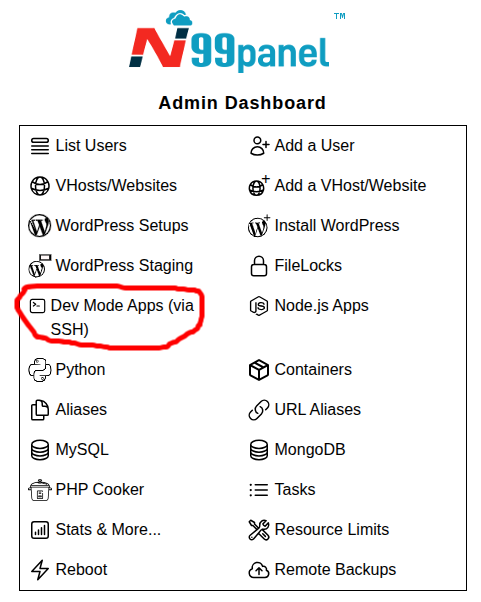
Step 1 : Log into N99panel. From under N99panel dashboard, click 'Dev Mode Apps (via SSH)'
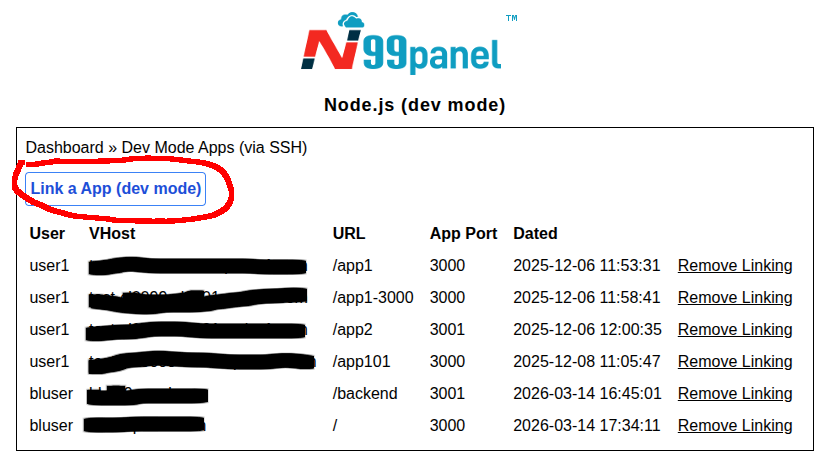
Step 2 : Now click 'Link a App (Dev Mode)'
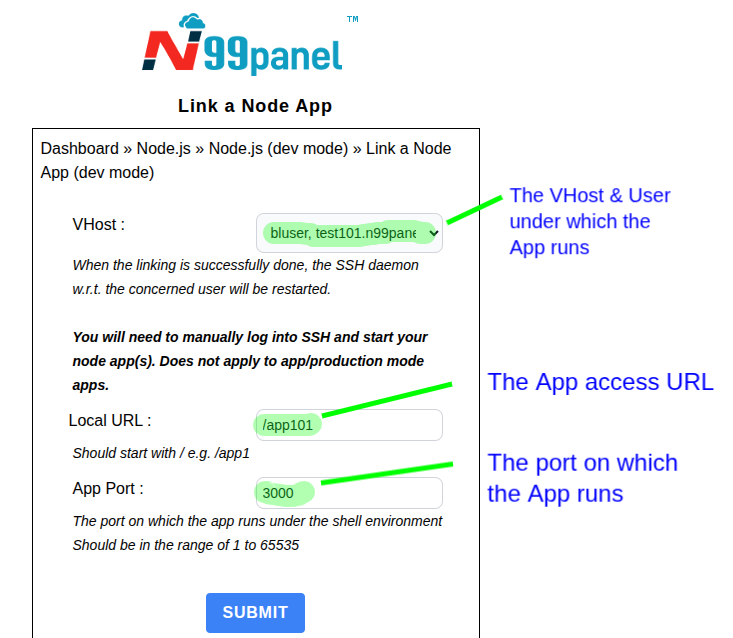
Step 4 : Fill in the form as under
Important point :
- Select the VHost (website) mentioned along with the user.
- Enter the ‘Local URL’ . This would be like /app1 or /app2 or it can even be the website root i.e. /
- Enter the ‘App Port’ . The port on which your App runs . You need to ensure that your App listens on interface 0.0.0.0 instead of 127.0.0.1 or localhost which typically are used
- The SSH daemon w.r.t. the concerned user will be restarted to enable backend port mappings. Therefore your dev mode app and any existing dev mode apps would need to be manually started. This applies whenever the SSH daemon is restarted. But when NodeJS Apps run in app/production mode, this does not apply. App/production mode is recommended when you have completed development or testing of the App, as each App in that mode has its own lifecycle.
Read further on how to start the App when logged into SSH
N99panel comes with multiple NodeJS versions i.e. 10, 12, 14, 16, 18, 20, 22, 24. These versions can be referenced from within SSH using the commands
node10
node12
node14
node16
node18
node20
node22
node24
respectively. The npm’s accompanying these versions can be referenced via
npm10
npm12
npm14
npm16
npm18
npm20
npm22
nom24
respectively. The default node command refers to node18. Please refer to this article to change the default version of node CLI - How to change the default version of node or NodeJS CLI for a user
Now to run the App,
Login into the server/VPS via SSH of the user ID under which the VHost/website is running. Though you can run the NodeJS App from any folder, but ideally create a new App folder within the node_apps folder. This would help later also when we shift this App to the Production mode.
Now assuming that you created a app folder app1 , now under that folder upload all your source files including package.json . Lets’s say that we wish to user version 16 , to run NPM commands w.r.t. that ideally we will use npm16 .
To run the app, we should first ensure that the NodeJS source file creates the Node server at the ‘App Port’ number as specified earlier and the interface/IP to which it binds is 0.0.0.0 .
node16 app.js
Above process would now start the App as a foreground process
To start the App as a background process, do the following
node16 app.js &
If there are errors, it will simply show the errors and the process would end. And when you fix the errors, you can again try starting the App.
When you believe that you app is running stably and as per your expectations, at that moment you can decide to shift your App to the Production mode. Click here to read about it.